Headmates
Backups and moving phones
Everything your system holds lives on the phone. A backup is how it survives a lost phone, reaches a new one, or simply sleeps safely in a file you keep.
The three choices
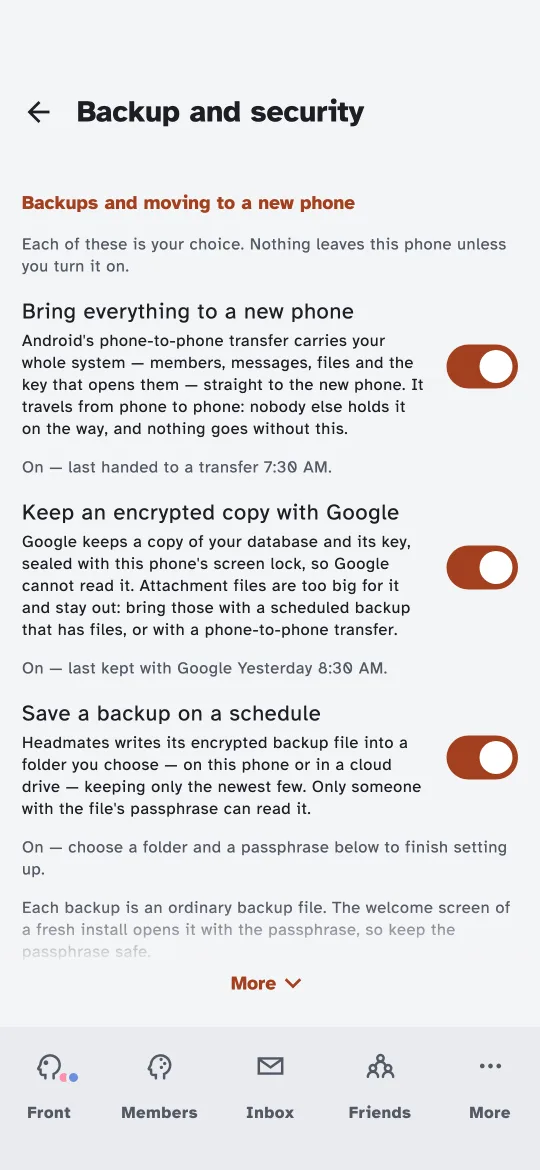
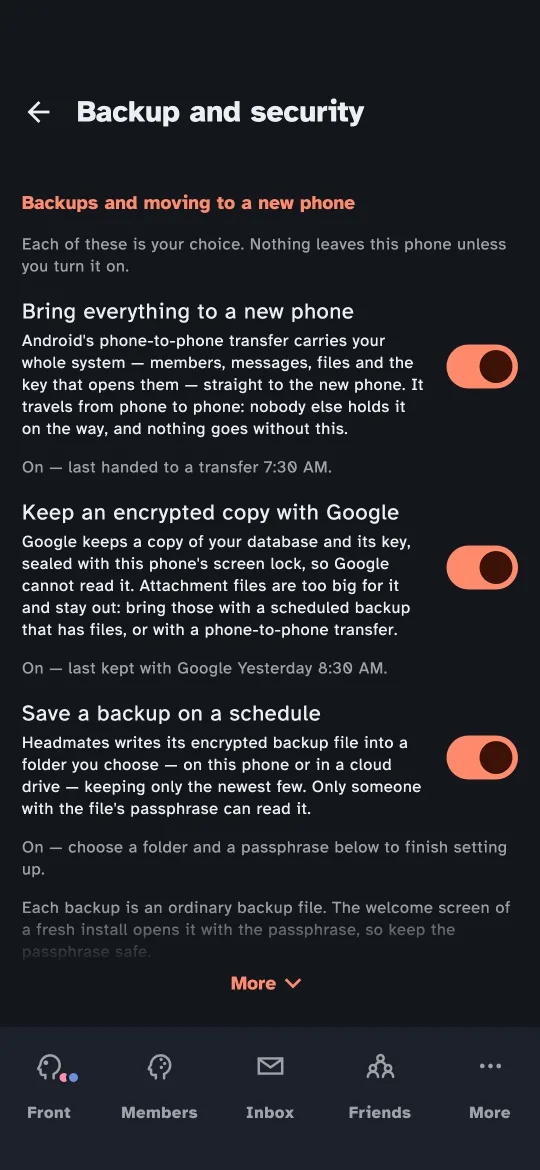
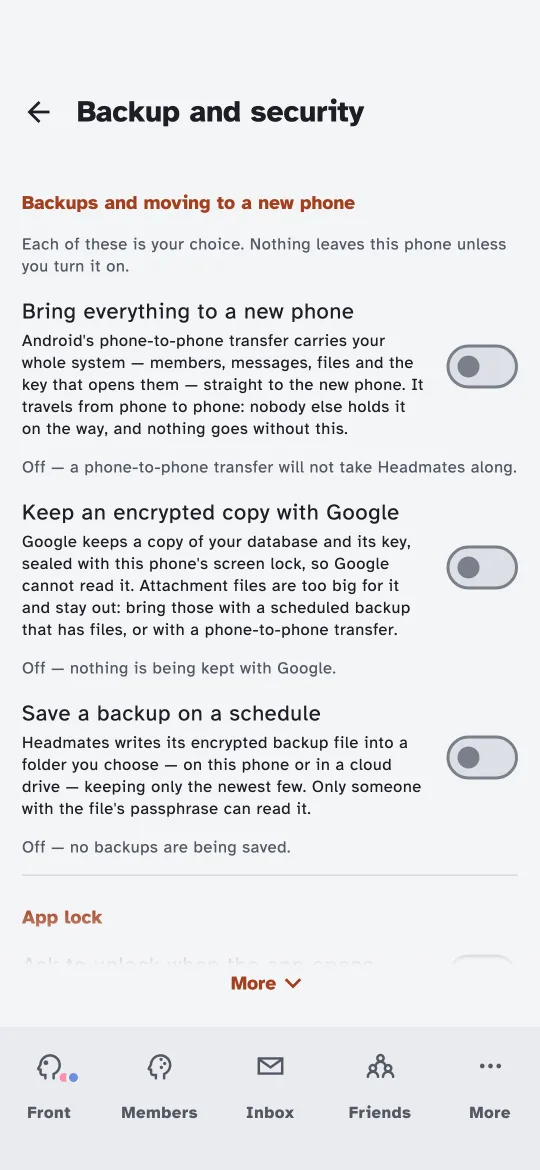
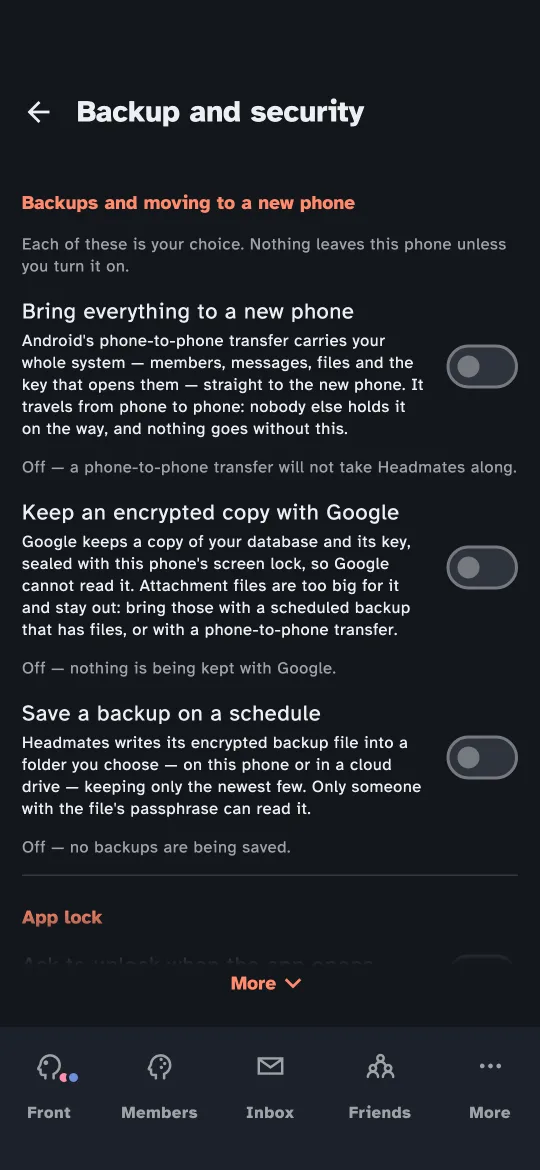
More → Backup, app lock and screenshots has three switches. Each says what it last did and when.
- Bring everything to a new phone: takes part in the Android™ phone-to-phone transfer, which carries your whole system (members, messages, files and the key that opens them) straight from the old phone to the new one.
- Keep an encrypted copy with Google: Google's backup keeps a copy of your database and its key, sealed so Google can't read it. Attachment files are too big for it and stay out: bring those with a scheduled backup that holds files, or with a phone-to-phone transfer.
- Save a backup on a schedule: writes an encrypted backup file to a folder you choose, every day or every week.
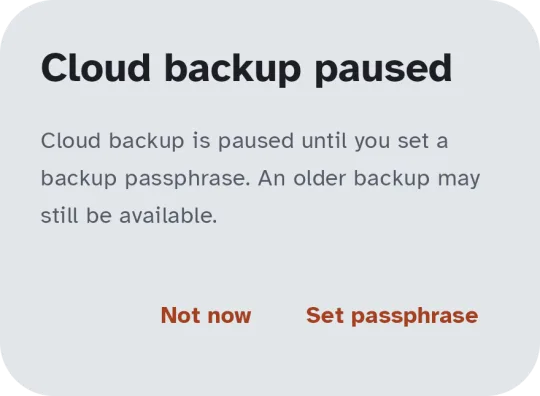
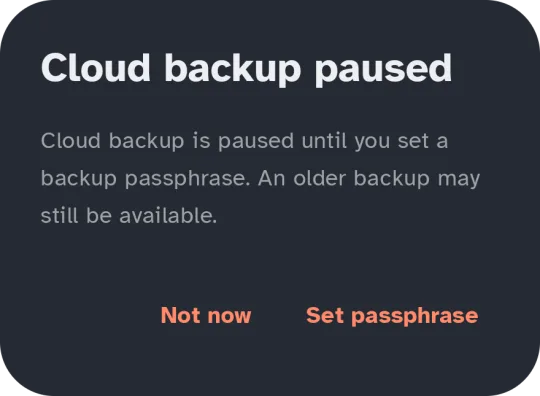
The copy with Google needs a backup passphrase, the same one scheduled backups use. Turning it on asks for one if none is set yet. Until there is one, the copy is paused and the switch offers Set passphrase. If it was already on before it needed a passphrase, the app says so once.
On iPhone there are two switches: Keep an encrypted copy with iCloud, where your iPhone's iCloud Backup keeps the database, still encrypted, and iCloud Keychain keeps its key, so Apple can't read either (attachment files stay out), and Save a backup on a schedule. Phone-to-phone transfer is Android's own.
Turning a switch off stops it for the future; nothing already kept is deleted.
Saving a backup file right now
Encrypted backup writes one file wherever you choose. Pick a passphrase of at least 12 characters that nobody could guess and you won't forget: without it nobody can open the backup, including you.
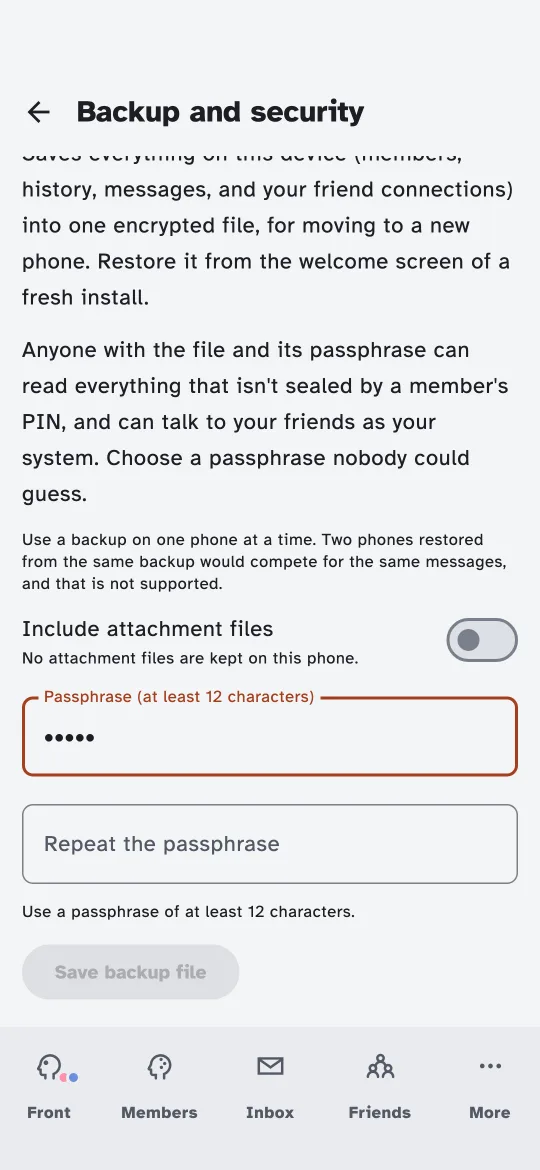
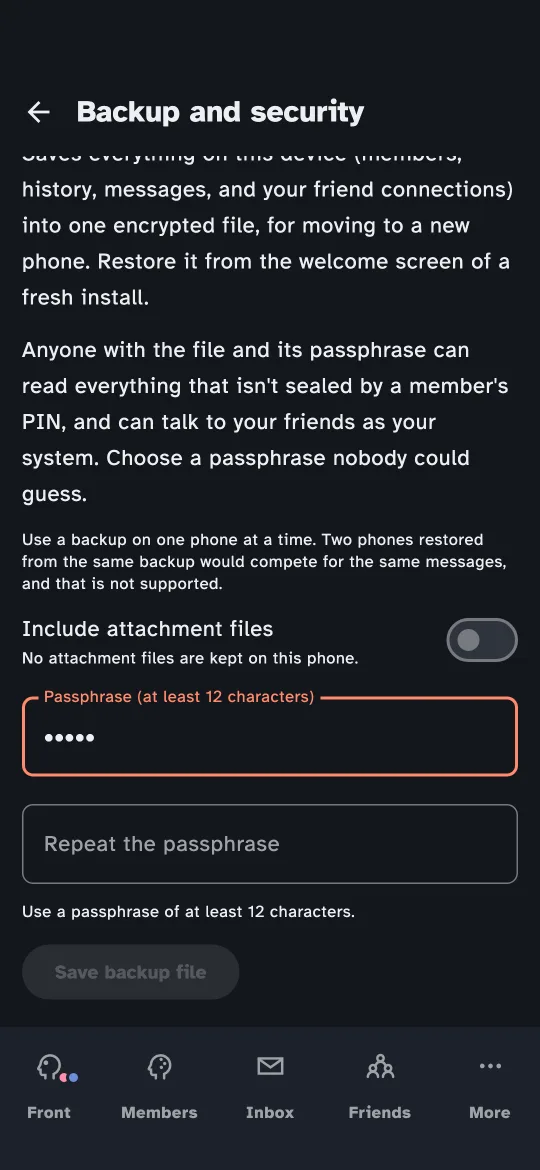
When it finishes, the file is named for your system and the day. Keep it somewhere this phone isn't the only copy of — another device, a computer, a drive in a drawer.
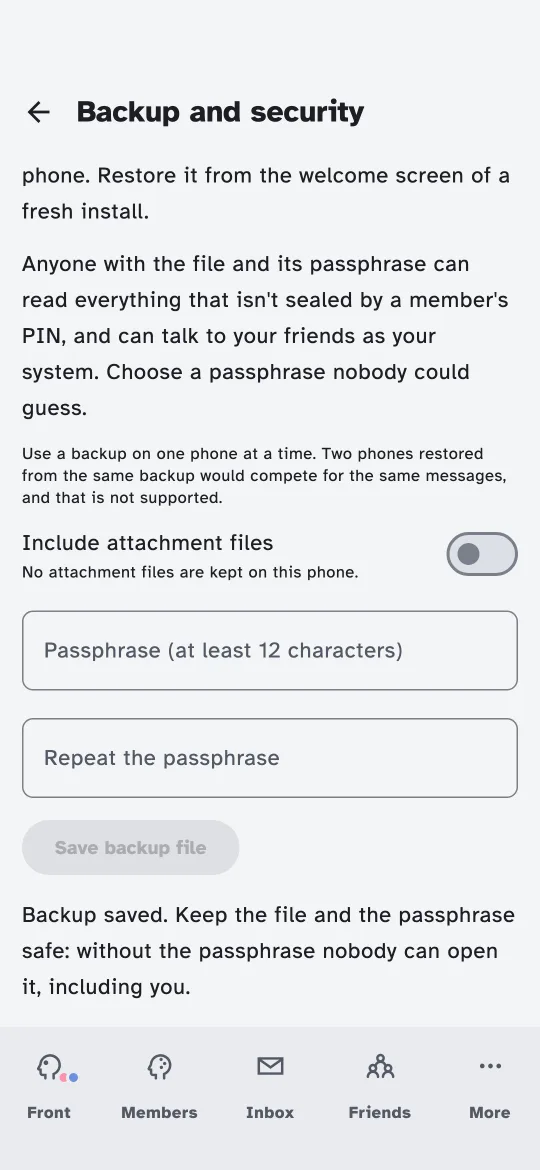
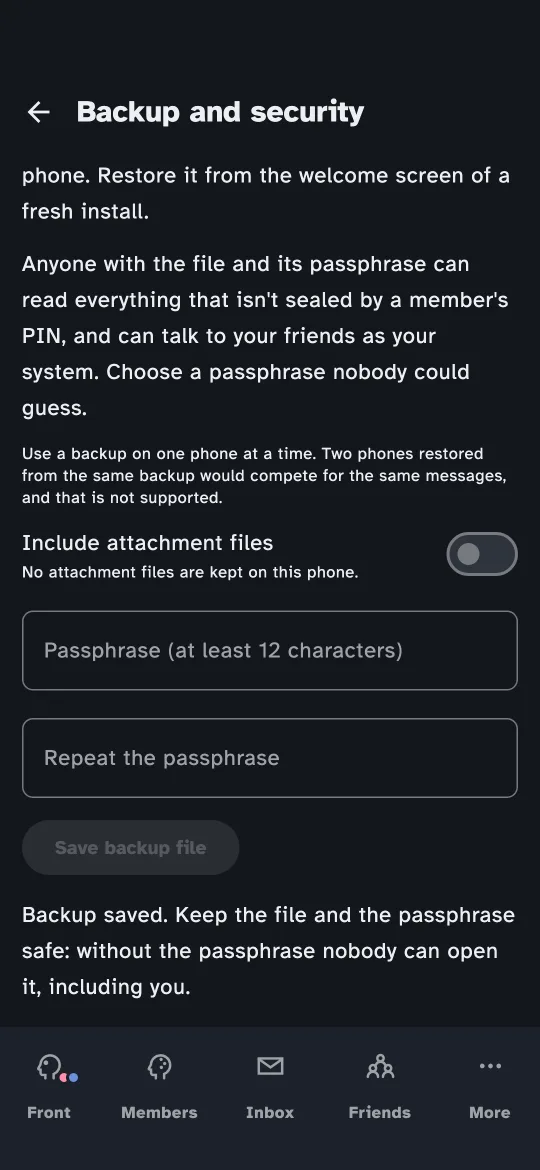
If the folder can't be written to — a drive that went away, a permission that was withdrawn — the app says so and nothing is lost; try again into another folder.
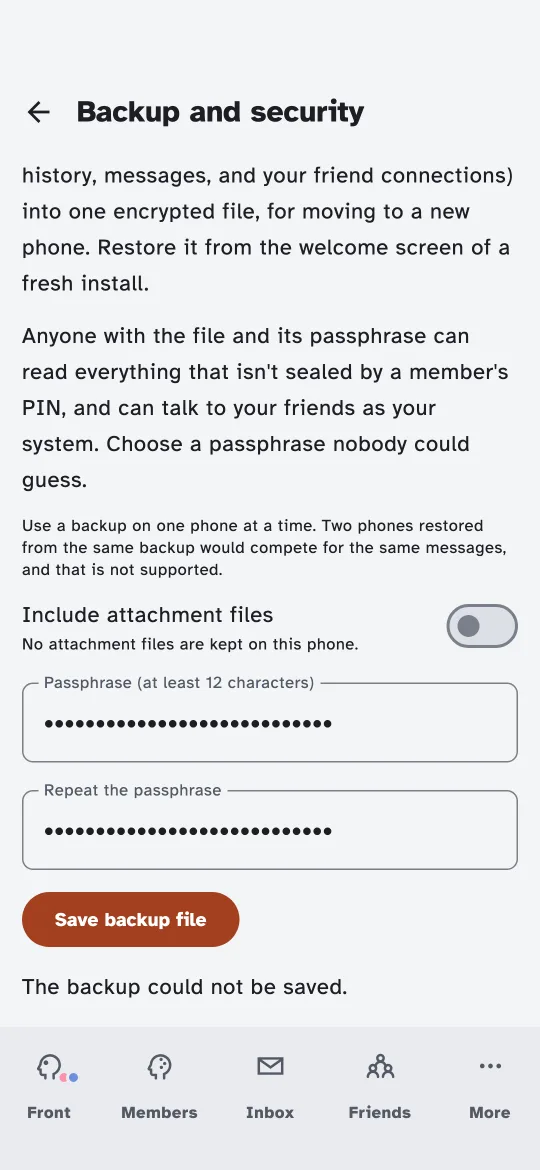
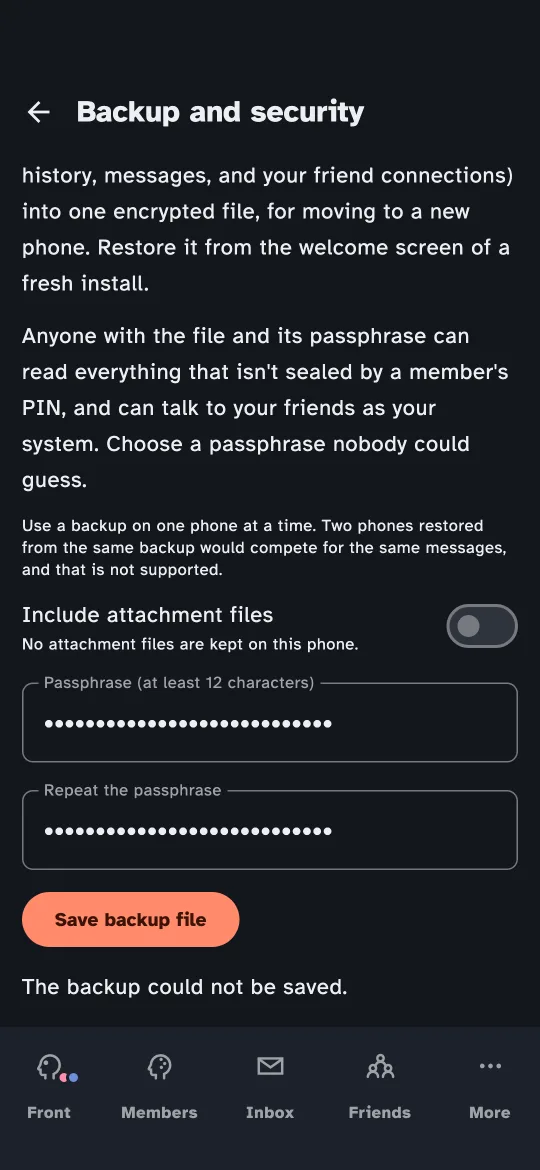
A backup holds the whole database and, if you ask, the attachment files in chats. It does not hold things sealed by a member's PIN: those stay sealed, and the PIN still opens them after a restore. Use a backup on one phone at a time.
Scheduled backups
Choosing Save a backup on a schedule asks for a folder, a passphrase, how often (every day or every week), how many backup files to keep, and whether attachment files go in. Older files beyond the limit are removed as new ones are written. On iPhone, iOS decides when the app may work in the background: a scheduled backup runs when iOS allows, at most daily.
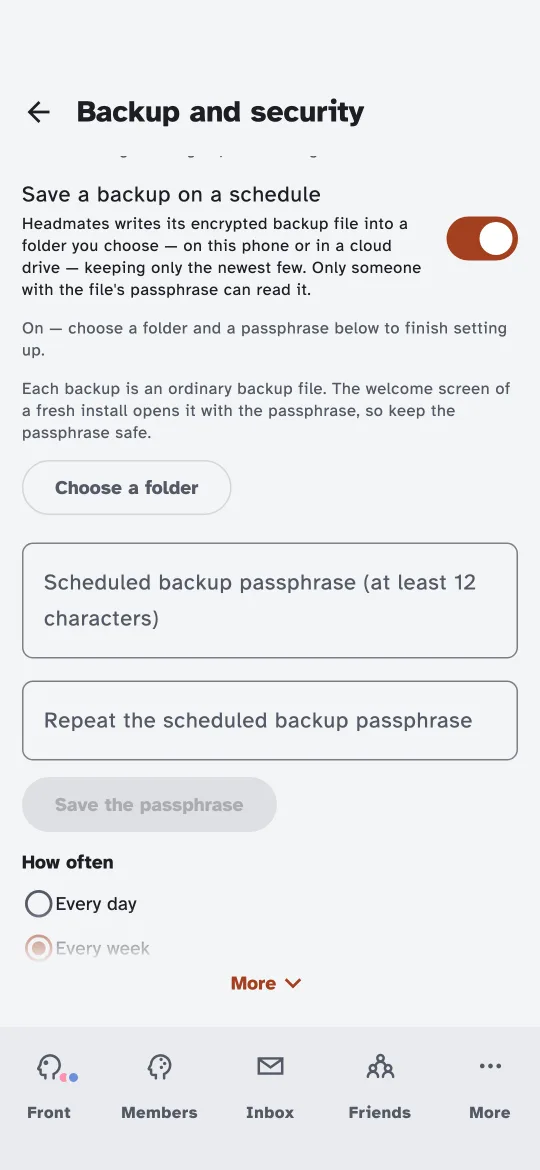
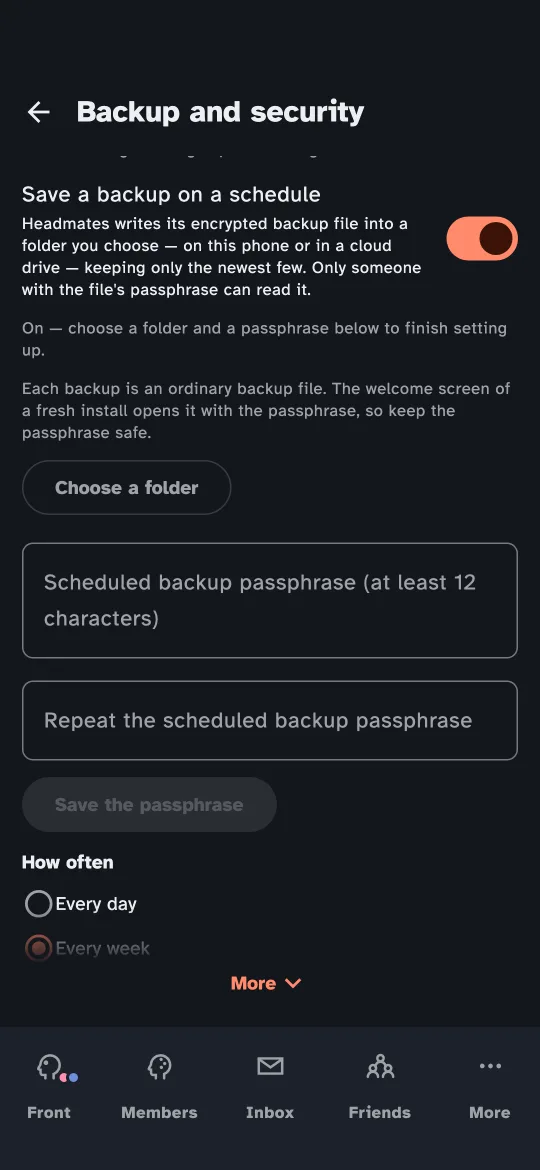
A scheduled backup that can't reach its folder counts as failed and is tried again at the next run. On Android, a notification says it failed; the switch shows when the last run was.
Restoring a backup
Restore a backup from another phone on the welcome screen opens the file and asks for its passphrase. A backup can only be restored onto a fresh install with nothing in it yet. Before anything is replaced, the app shows exactly what the backup holds: the system's name, its members and friends, its group chats, and any attachment files.
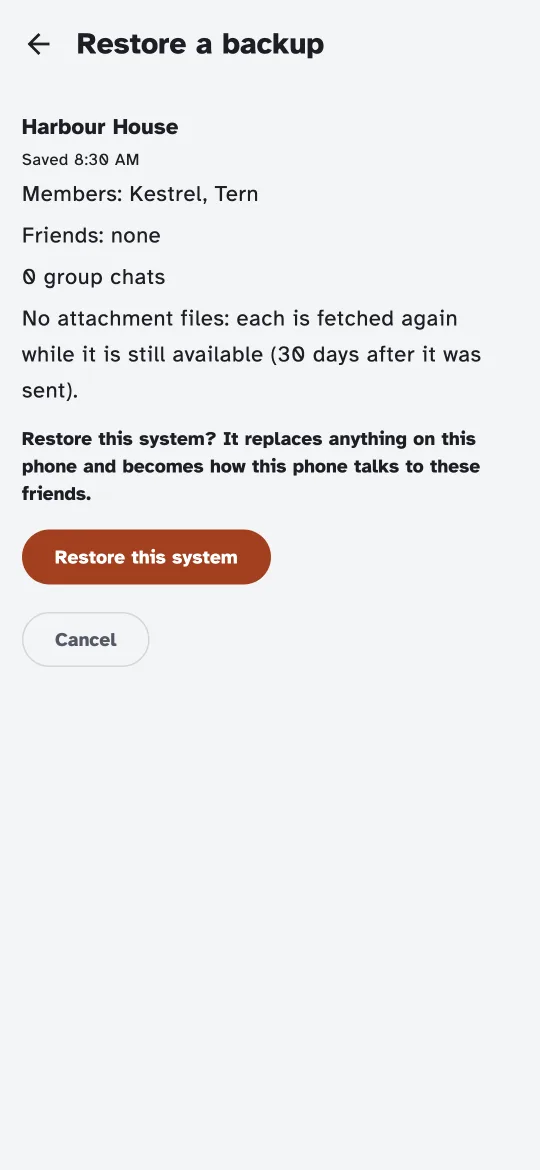
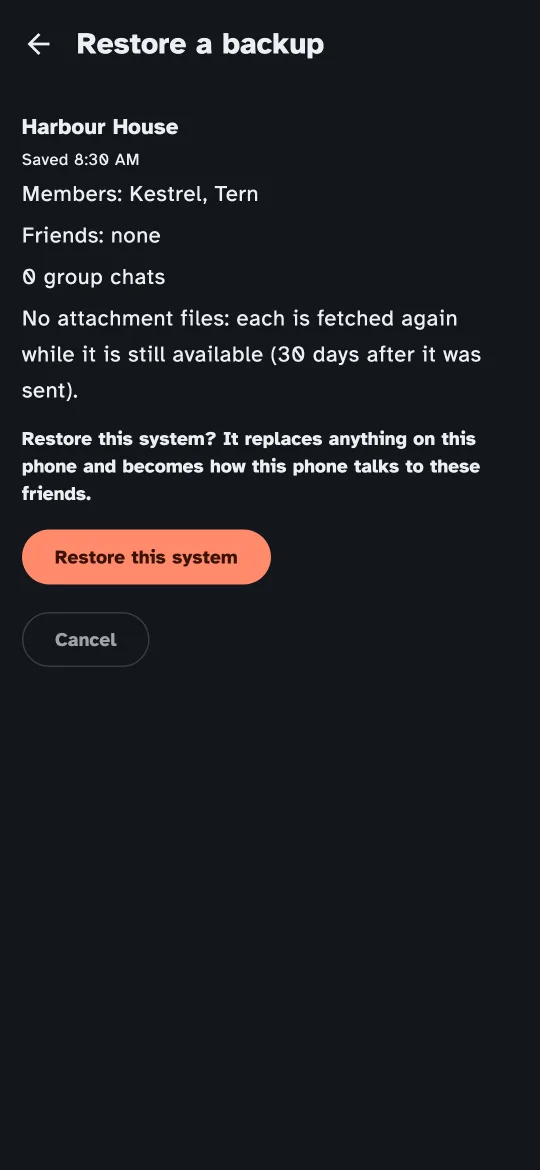
If the passphrase is wrong or the file is damaged, nothing is changed and the app says which of the two it found.
Once it finishes, the first start says what came across — and if the key that opens the attachment files couldn't come with the database, the app says so and fetches the files again from the relay while it still keeps them (30 days after each was sent).
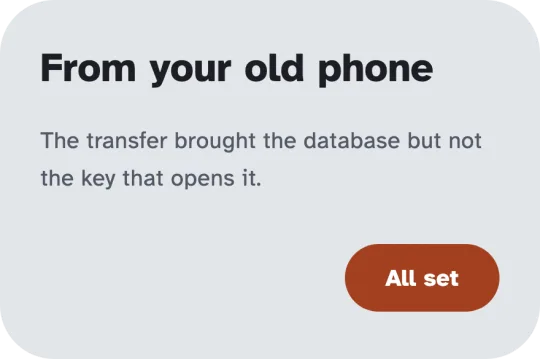
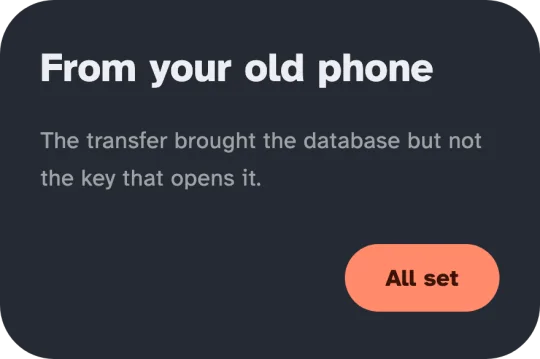
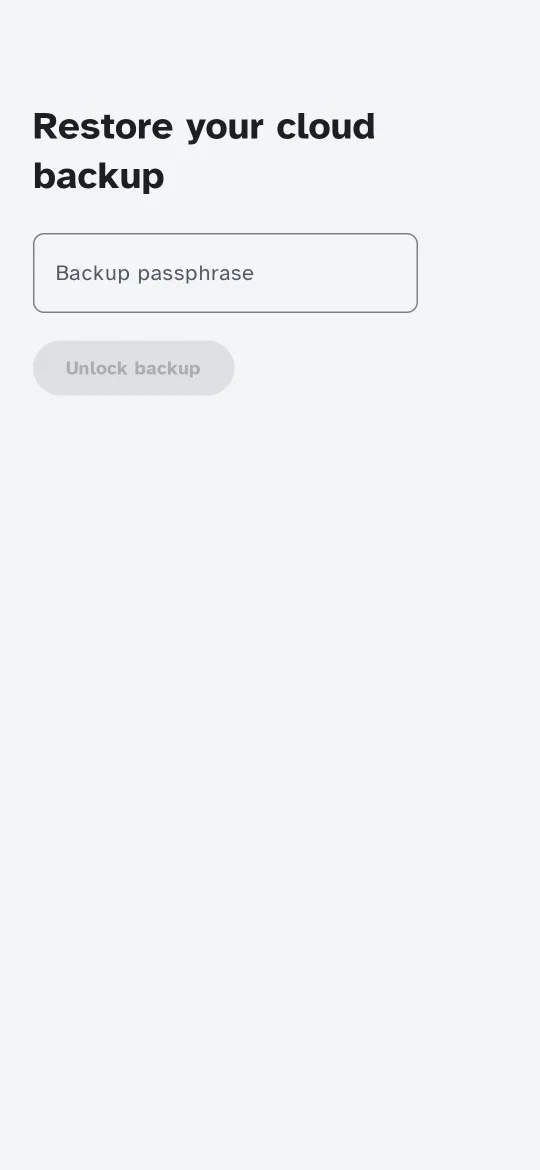
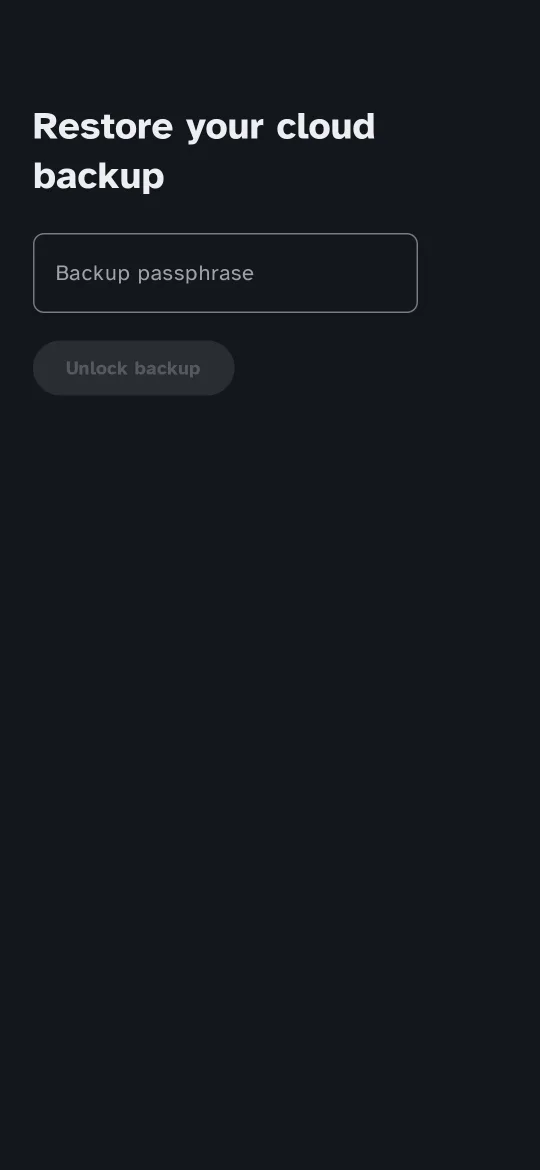
A new Android phone that brought Headmates back from Google's backup asks for the backup passphrase (Restore your cloud backup) before it opens the system.
Moving to a new phone
For a brand-new phone, three roads lead there:
- Restore a backup from a file you saved earlier, as above.
- Join as a second device brings the system over from the phone it is already on, live; see A second device.
- Android's own phone-to-phone transfer, if Bring everything to a new phone was on.
On iPhone there are two roads: Join as a second device brings the system over live, and a saved backup file restores it on a fresh install. The third road is Android's own, so it never appears on iPhone.
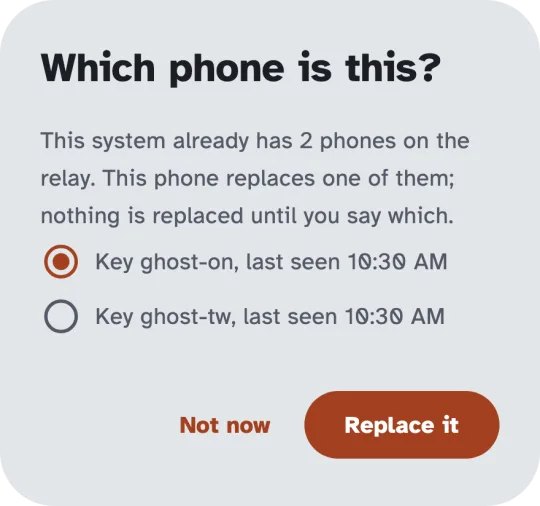
Whichever road, if the system already has two phones on the relay, the app asks which one this phone replaces before anything is replaced.